I wrote a piece on what WCAG is, and made a claim in it: AI tools will hand you a site that looks finished and is quietly inaccessible. Then I did the obvious thing and ran the checks on my own site, the one you are reading this on. It scored 100. I still wasn't done, and this walkthrough is why.
If you have not read the explainer, the one-line version: WCAG is the web accessibility standard, and "can everyone use this" is the whole question. Here I am not explaining it. I am checking a real site against it, finding the gap the tools missed, fixing it, and wiring the check so it runs without me.
Step 1: run the automated scan (2 minutes)
The fastest signal is Lighthouse. It is built into Chrome.
1. Open your site in Chrome, open DevTools (right-click, Inspect).
2. Go to the Lighthouse tab, tick Accessibility, click Analyze page load.
Or from the terminal, which is what I did so I could save the result:
lighthouse https://kenove.no/ --only-categories=accessibility \
  --chrome-flags="--headless=new" --output=html --output-path=./a11y.html
My result: 100, zero failing audits.
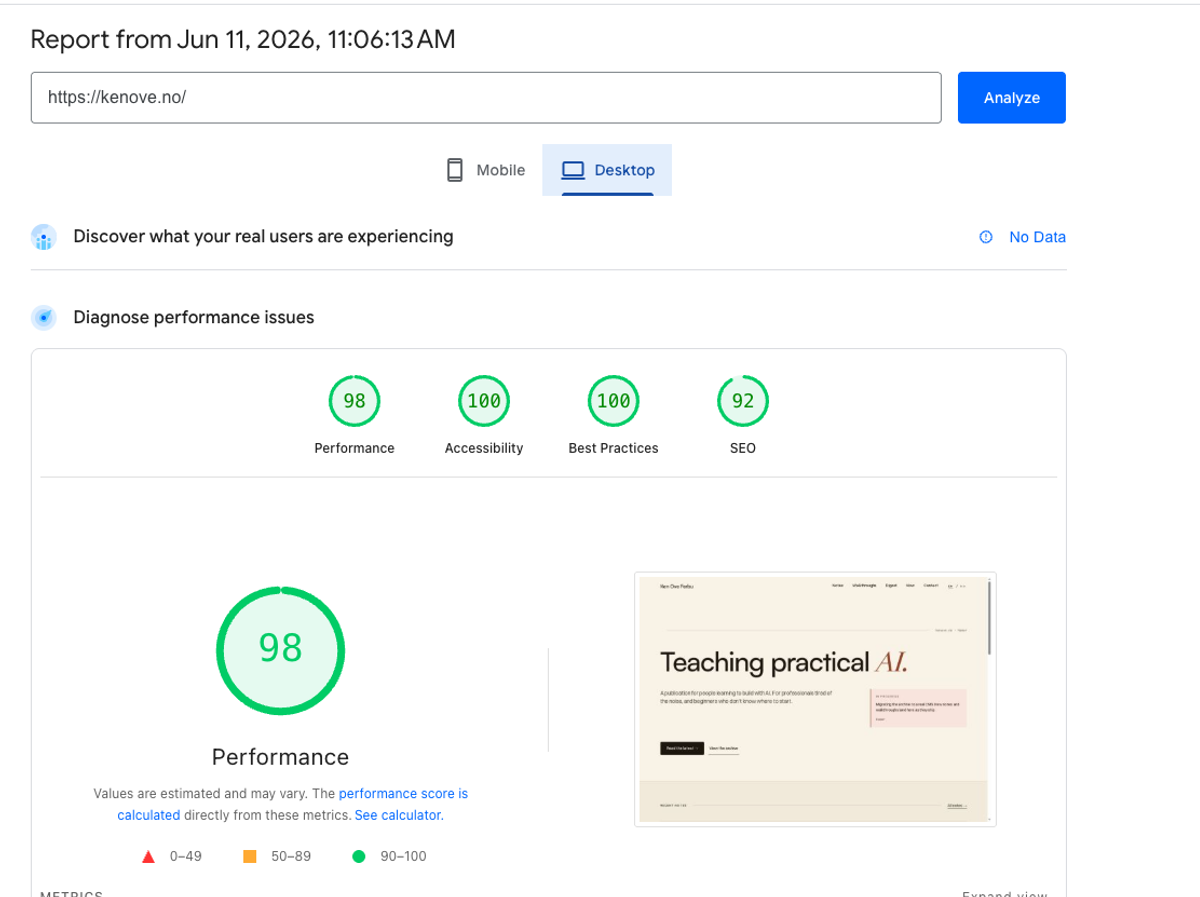
Here is the trap. Lighthouse runs axe-core rules under the hood, and those automated rules catch maybe a third to a half of WCAG. A 100 means "nothing a machine can detect is broken." It does not mean the site works for everyone. So the score is the start of the check, not the end of it.
Step 2: the manual pass (15 minutes)
This is the part the score cannot do for you. None of it needs code.
Unplug your mouse. Seriously. Then press Tab, over and over, from the top of the page.
Can you reach every link, button, and field?
Can you always see where you are? There must be a visible focus ring.
Does the order make sense, top to bottom, or does focus jump somewhere strange?
Can you operate everything: open menus, submit the form, close dialogs?
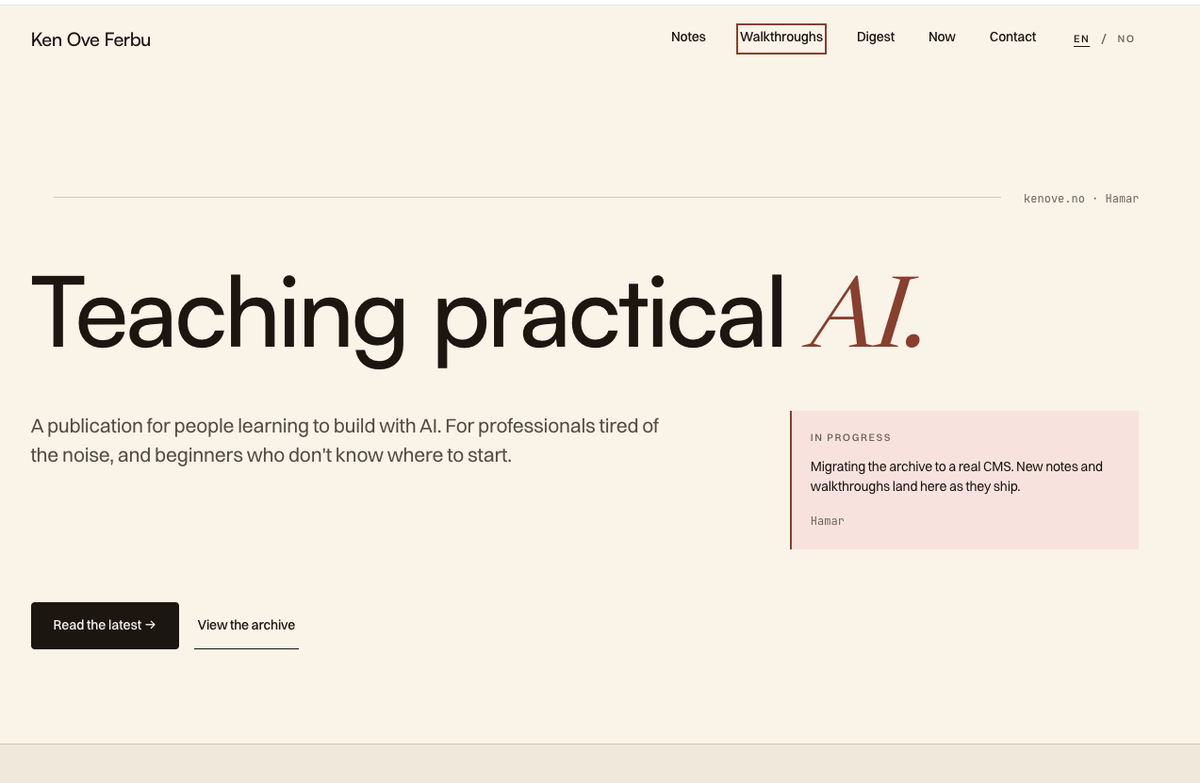
Run a second scanner. Install the free axe DevTools or WAVE browser extension and read what it flags. A second tool catches things Lighthouse phrases differently or misses.
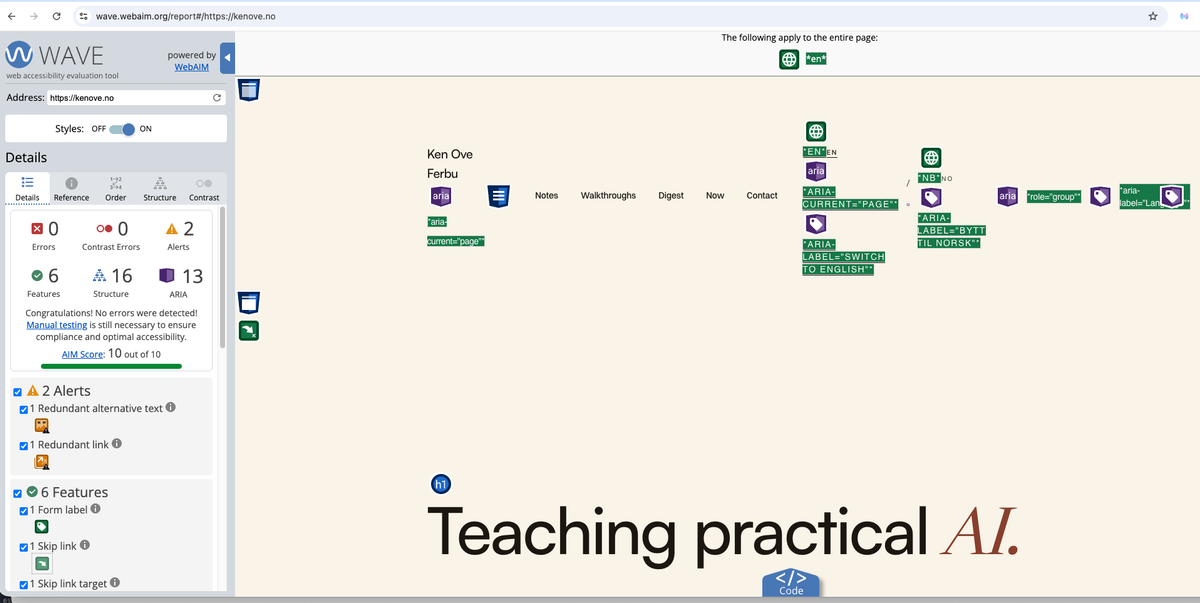
Check a few specifics by hand:
View source and confirm <html lang="..."> is set, and that it is correct per language. On my Norwegian pages it is nb, which is right.
One <h1> per page, then headings that step down in order without skipping.
Real landmarks: <main>, <nav>, <header>, <footer>.
Every meaningful image has alt that describes it. Decorative images get empty alt="".
Run a contrast checker on your body text and buttons. Aim for the AA ratios (4.5:1 for normal text).
Step 3: what my manual pass actually found
Two things, and both are the point of this whole walkthrough.
A false positive. My first quick script flagged the newsletter email field as missing a label. I looked at the markup before believing it:
<label for="footer-email" class="sr-only">Email address</label>
<input type="email" id="footer-email" placeholder="you@domain.com" required />
It is labeled correctly. The label is visually hidden with sr-only but read out by a screen reader, and the for/id pairing is right. The tool was wrong, and the only way to know was to check. That is the habit: a flag is a question, not a verdict.
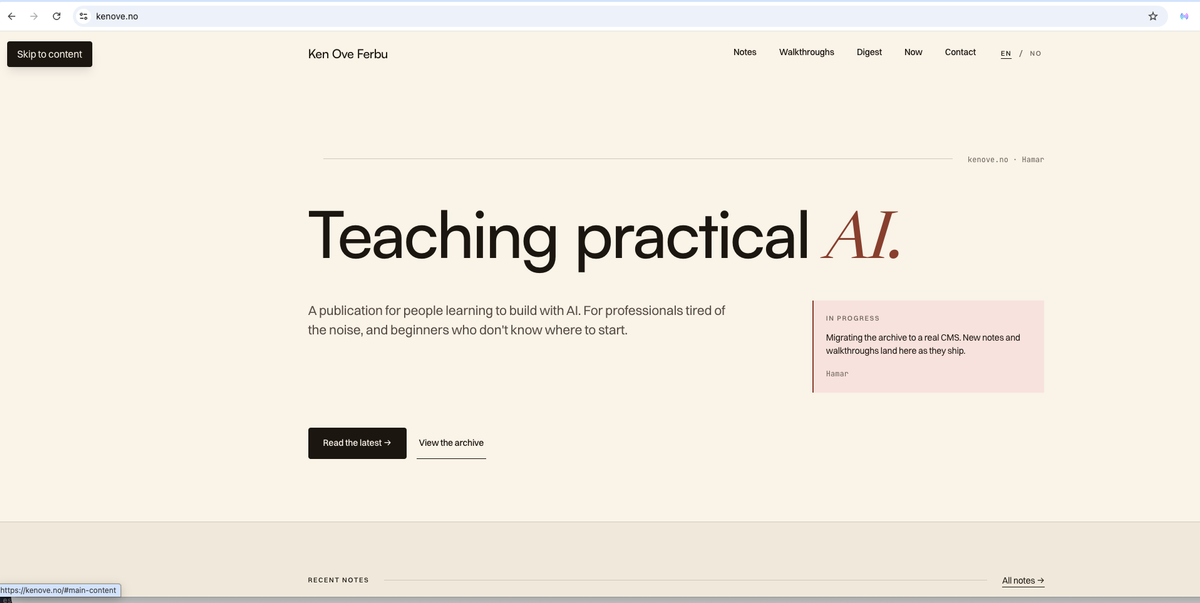
A real gap the 100 never mentioned: no skip link. A keyboard user landing on any page has to Tab through the whole header and nav before reaching the content, on every page. The fix is a "Skip to content" link that is the first thing you reach, hidden until focused. This is WCAG 2.4.1 Bypass Blocks (Level A). Strictly speaking, proper landmarks get you partway there on paper, but the skip link is the technique every audit expects, and the Tab-through-everything experience is real either way. Lighthouse scored 100 and never raised it. The keyboard pass found it in about thirty seconds.
Step 4: fix it (the actual change)
My site is a Lovable build (React, TanStack Start). Here is exactly what I added.
A small component, visually hidden until it receives focus:
export function SkipLink({ locale }: { locale: "en" | "no" }) {
  const label = locale === "no" ? "Hopp til innhold" : "Skip to content";
  return (
    <a
      href="#main-content"
      className="sr-only focus:not-sr-only focus:absolute focus:left-4 focus:top-4 focus:z-50 focus:rounded focus:bg-ink focus:px-4 focus:py-2 focus:text-paper focus:no-underline focus:shadow-lg focus-visible:outline-none"
    >
      {label}
    </a>
  );
}
Rendered as the first element inside <body>, so it is the first thing a keyboard reaches:
<body>
  <SkipLink locale={locale} />
  {children}
  <Scripts />
</body>
And the target it jumps to: every page's <main> gets the matching id, and tabIndex={-1} so focus actually lands there.
<main id="main-content" tabIndex={-1}> ... </main>Then verify, do not assume. Typecheck, then unplug the mouse again: Tab once from the top, the "Skip to content" chip should appear, Enter should jump you past the nav to the content.
Step 5: wire it so it stays fixed
Doing this once is housekeeping. The value is making it run without you. Three layers, least to most setup.
Scan on every deploy. Lovable syncs to a real GitHub repo, so a GitHub Action can scan every push. A minimal one with pa11y-ci:
name: accessibility
on: [push]
jobs:
  pa11y:
    runs-on: ubuntu-latest
    steps:
      - uses: actions/checkout@v4
      - uses: actions/setup-node@v4
        with: { node-version: 22 }
      - run: npx pa11y-ci --sitemap https://kenove.no/sitemap.xml
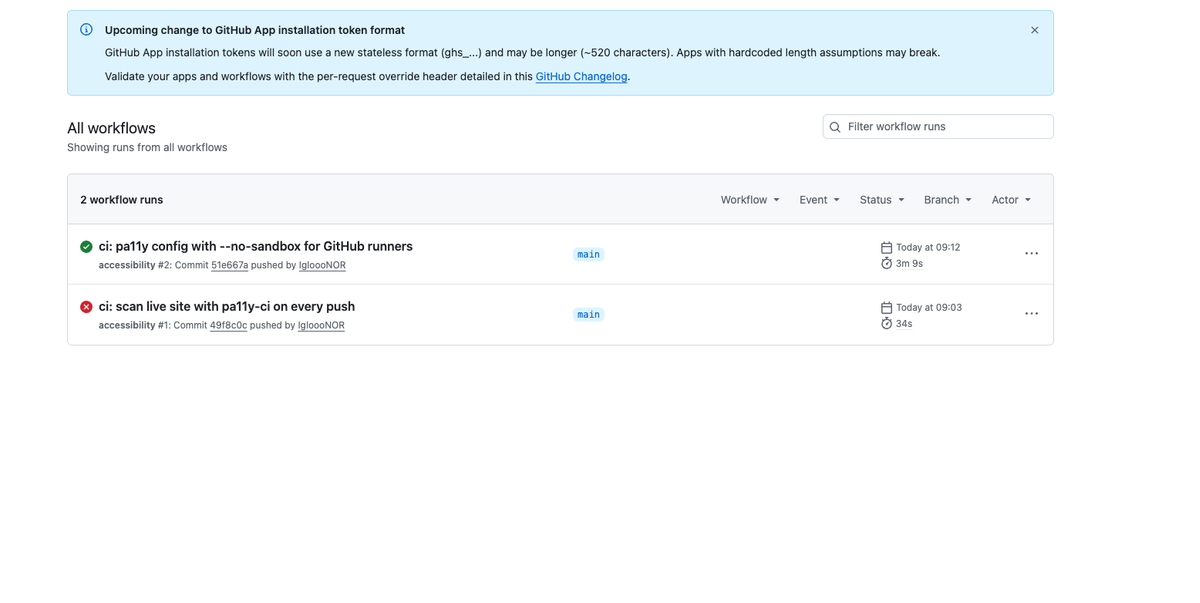
One gotcha I hit for real: GitHub's current Ubuntu runners do not let Chrome start its sandbox, so my first run died before scanning a single page. The fix is a small config file named .pa11yci next to your code:
{
  "defaults": {
    "chromeLaunchConfig": { "args": ["--no-sandbox"] }
  }
}
With that in place, the run went green against the live site. It crawls the sitemap, runs the checks, and fails the run if a new violation appears. You change a button, the check runs, you find out in minutes instead of three weeks later. (Lighthouse CI, @lhci/cli, does the same with score budgets if you prefer a number to hold.)
Scan on a schedule. For a catch-all that does not depend on a deploy, I point an n8n flow at the live site once a week: a Schedule trigger, an Execute Command node running pa11y on the key URLs, and a Gmail node that emails me the diff. Set once, ignored until it has something to say.
Turn the output into fixes with Claude. A raw pa11y or axe report reads like error codes. Paste it into Claude and ask it to explain each issue in plain English and propose the specific change for your framework. Same move for the tedious parts: draft alt text for a batch of images, or have it review one component for accessibility problems before you ship it.
The boundary, again
Automation got me to 100 and keeps me there. It did not find the skip link, and it cannot tell me whether the keyboard order feels right or whether a screen-reader user can actually finish the task. That part stays human, at least for now. The shape is three steps, and only the middle is new: detect automatically, fix with AI assistance, verify by hand. The machine flags, the AI drafts the fix, you confirm it actually works.
That is the whole method. My site scored 100, had a real gap anyway, and now has a check that runs on every push. Yours can too, in about the time it took to read this.